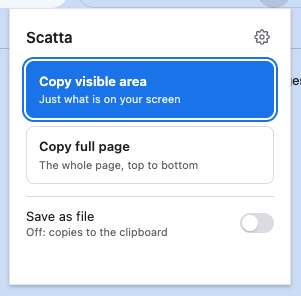
Two ways to snap.
Press Alt + Shift + S (Option + Shift + S on a Mac), pick one, then paste it anywhere.
Copy visible area
Exactly what you can see on screen right now. It's the highlighted button, so the shortcut then Enter does it.
Copy full page
The entire page from top to bottom in one image, including apps that scroll inside their own panel.
Save as file
Switch it on to save a PNG to Downloads/scatta/, named after the site and the time, instead of copying.
Install in five steps.
Scatta isn't on the Chrome Web Store, so you add it to Chrome yourself. It takes about a minute.
Download and unzip
Download the latest zip and unzip it. You'll get a folder called
scatta.Open the extensions page
In Chrome, type
chrome://extensionsin the address bar and press Enter.Turn on Developer mode
Use the switch in the top right corner of the page.
Load the folder
Click Load unpacked and select the unzipped
scattafolder (the one withmanifest.jsoninside).Pin it
Click the puzzle piece icon in the toolbar and pin Scatta, so it's always one click away.
Keep the folder somewhere permanent, not in Downloads. Chrome loads Scatta from it every time it starts.
Then just snap.
Everything happens in the small popup.
Open the page you want
Any normal web page works.
Open Scatta
Click the camera icon, or press Alt + Shift + S (Option + Shift + S on a Mac).
Choose what to capture
Copy visible area for what's on screen, or Copy full page for everything.
Paste it
Press Cmd + V (or Ctrl + V) in a chat, document or email.
Make it yours.
Open the settings with the ⚙ icon in the popup, or right-click the Scatta icon and choose Options.
Full page as the main button
Set Main button to Full page and the shortcut then Enter captures the whole page.
Close after the screenshot
The popup closes itself 1 to 5 seconds after a successful capture. It stays open on warnings, errors, or if you click in it. Off by default.
Change the shortcut
Go to chrome://extensions/shortcuts and pick any key combination you like.
Good to know.
The yellow "debugging" bar
A full page capture briefly shows a bar saying Scatta started debugging the browser. That's normal: Chrome needs it to render the whole page at once, and it disappears straight after.
DevTools open?
Full page capture doesn't work while DevTools is open on that tab. Close it and try again.
Pages Chrome protects
Chrome blocks screenshots of chrome:// pages, other extensions' pages and the Chrome Web Store.
Very long pages
Chat apps shrink big images, so small text can get hard to read. For detail, use the visible area.
Private by design.
Scatta only asks for what it needs to take the screenshot you asked for.
| Permission | Why |
|---|---|
activeTab | Capture the tab you're on, only when you click the icon |
debugger | Render the full page for a full page screenshot |
clipboardWrite | Copy the image to your clipboard |
downloads | Save the PNG when Save as file is on |
storage | Remember your settings |
Nothing is sent anywhere. Your screenshots stay on your computer.
Updating.
Download the latest zip, replace your old scatta folder with the new one, then click the reload icon on the Scatta card in chrome://extensions.
Coming from Tab Selfie? Scatta is the same extension with a new name. Click Remove on the Tab Selfie card in chrome://extensions, then install Scatta with the steps above. Your settings start fresh, so set them again if you changed any.